Mastering your jumpshot is the difference between being a recreational park player and a genuine competitive threat in NBA 2K25 gaming and the universe in general.
This year, Visual Concepts has introduced more nuance to the shooting mechanics, making your visual cues more critical than ever.
Whether you are struggling with the new Rhythm Shooting or you just want a meter that doesn’t blend into the hardwood. Customizing your settings is the first step toward greening every release.
Table of Contents
Why Customizing Your Shot Meter Matters
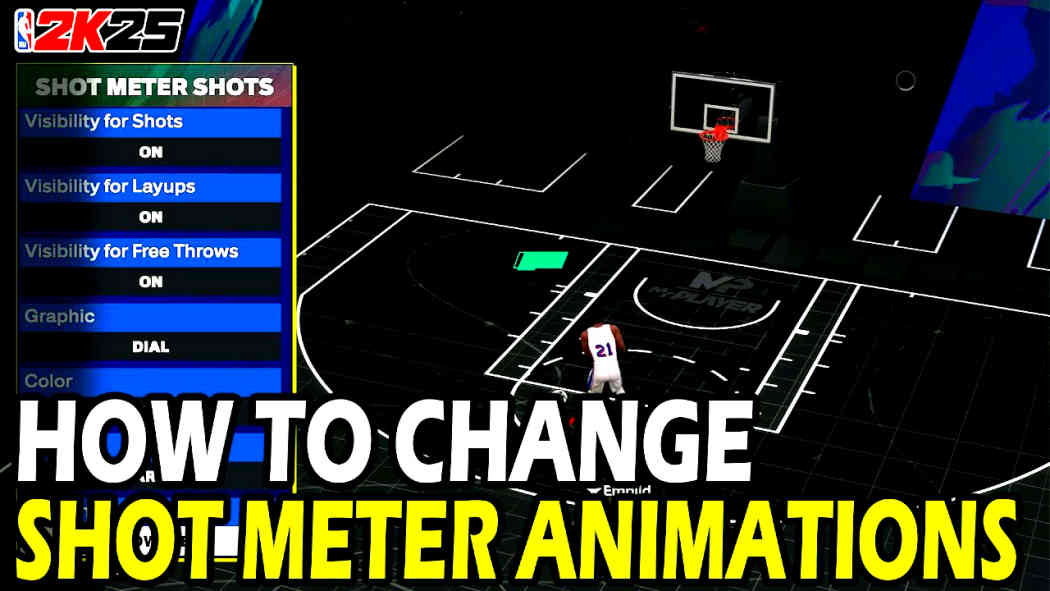
Before we dive into the how, let’s talk about the why. NBA 2K25 relies heavily on shot timing profiles, which are obviously the most essential part of the game.
Depending on your skill level and your internet latency (ping), the default meter might actually be hindering your performance.

READ MORE – Active 2K24 Locker Codes For MyCareer (Updated)
By changing the size, color, and location of your Meter, or turning it off entirely, you can make it suit yousuit you better.
Reduce Visual Clutter: See the defender’s hand contests more clearly.
Improve Reaction Time: Focus on your player’s actual animation rather than a moving bar.
Boost Your Green Window: Using specific settings can actually enlarge the “Make” window for your shots.
How to Access the Shot Meter Settings
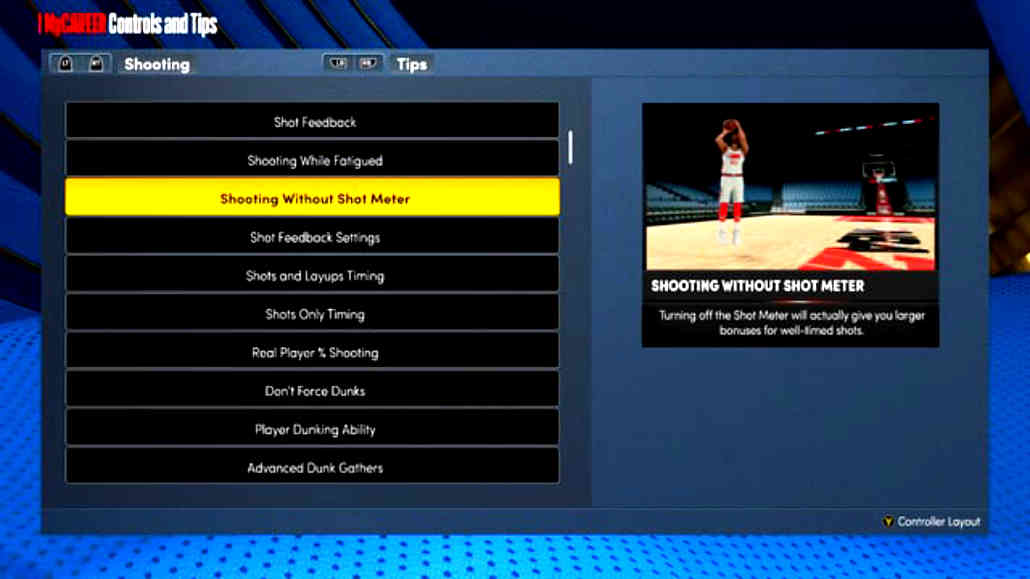
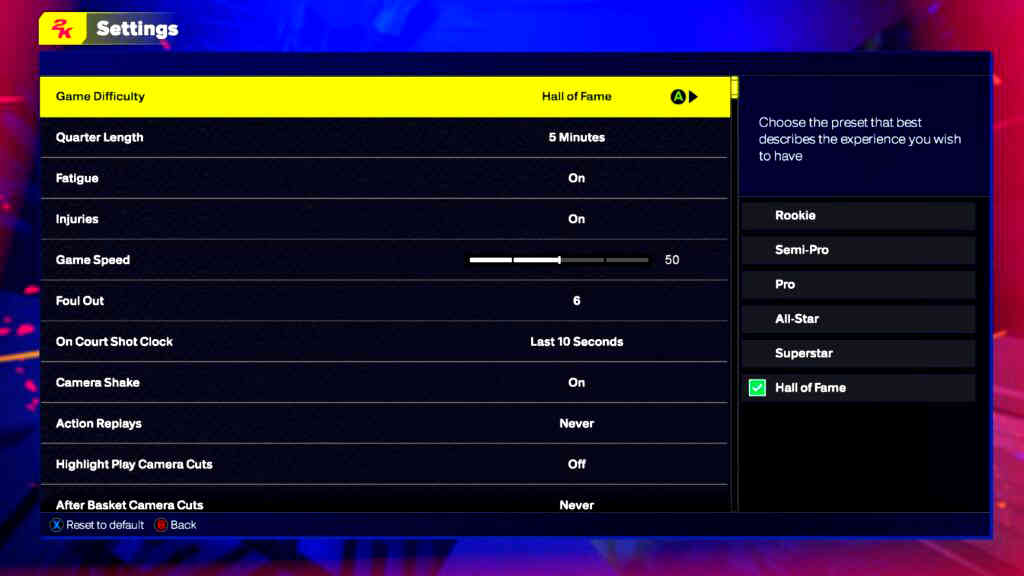
To change your shot meter in NBA 2K25, you can access the menus from either the Main Menu or while inside a game mode like MyCAREER.
From the Main Menu
1. Navigate to Features.
2. Select Settings.
3. Scroll down to Controller Settings.
From MyCAREER (The City/The Rec)
1. Pause the game (Options/Menu button).
2. Go to the Options tab.
3. Select Controller Settings.
Breaking Down the Shot Meter Options
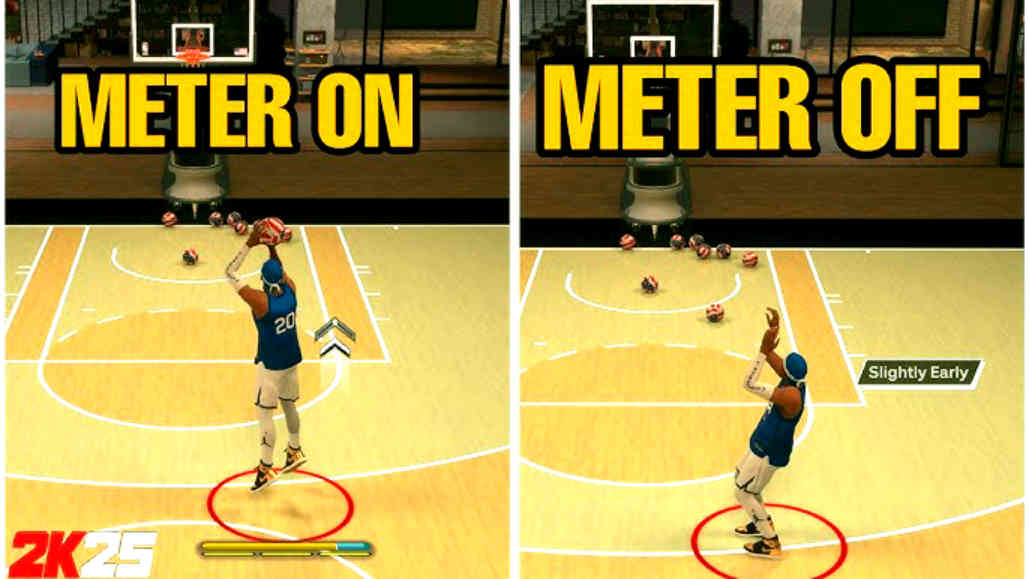
Once you are in the Controller Settings menu, you’ll see several options that dictate how the Meter behaves. Here is what each setting does:
1. Shot Meter: On/Off
It is the big one.
On: Shows the Meter for all shots.
Off: Removes the Meter entirely.
Pro Tip: Turning the shot meter OFF in NBA 2K25 provides a roughly 20% boost to your green window. If you can learn your player’s physical jumpshot cue, you will be a much more lethal shooter.
2. Shot Meter Graphic
It allows you to change the Meter’s visual aesthetic. 2K25 offers various shapes and styles, including the classic side bar, the overhead arc, and circular meters around the feet.
3. Shot Meter Size
If you find the Meter too small to track, you can toggle between Small, Medium, and Large. Most competitive players prefer Small to keep the screen clear, but beginners often benefit from Large to better see the timing zones.
4. Shot Meter Color
Visibility is key. If you play for the Lakers and use a yellow meter, you’re going to lose it in the crowd.
Best Colors: Cyan, Red, or Electric Green are generally the most visible against the brown hardwood floors.
The New Feature: Shot Visual Cue
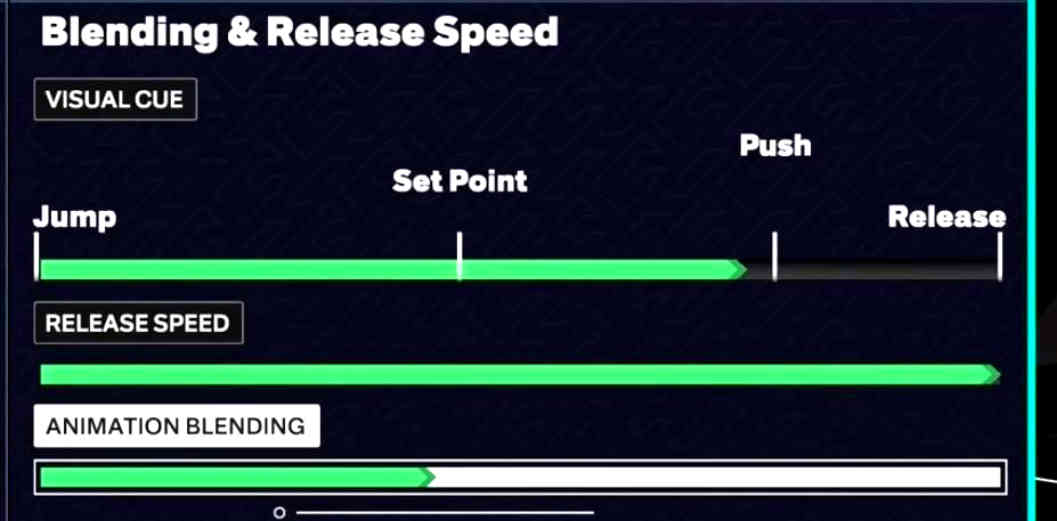
In NBA 2K25, the timing of the Meter is often dictated by your Visual Cue setting. It replaced the “Shot Timing Release Time” from previous years. You can choose from:
Jump: The Meter fills very quickly; you release as soon as the feet leave the ground.
Set Point: Release just before the ball reaches the forehead.
Push: The most popular setting. Release as the player begins the shot’s forward motion.
Release: The slowest setting. Release just as the ball leaves the fingertips.
Changing your Shot Meter style should always be done in tandem with adjusting your Visual Cue. If your Meter feels laggy, try switching your cue to Push.
How to Customize Your Shot Meter Style (Animations)
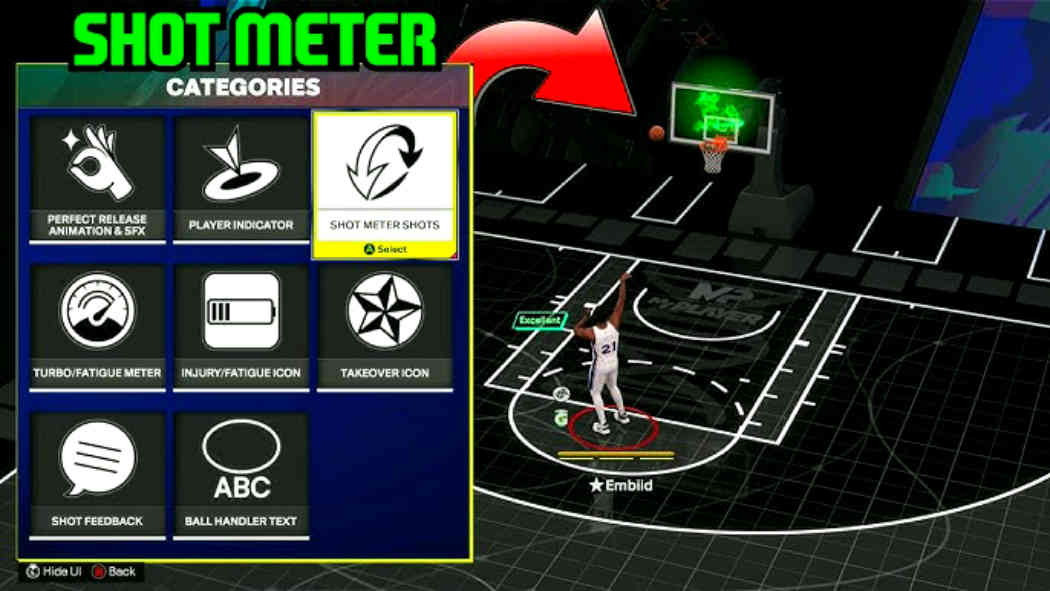
If the standard circular or bar meters aren’t doing it for you, NBA 2K25 offers deeper aesthetic customization in the MyPLAYER menu.
1. Open the MyPLAYER tab in the City or Promenade.
2. Go to Animations.
3. Scroll over to Customize HUD.
4. Find the Shot Meter section.
Here, you can unlock and equip different Graphic styles. Some are unlocked through the Season Pass, while others are available from the start.
You can change the Fill animation and even the Sfx (the sound it makes when you green a shot) and any other things that you can find.
Rhythm Shooting: The 2K25 Game Changer
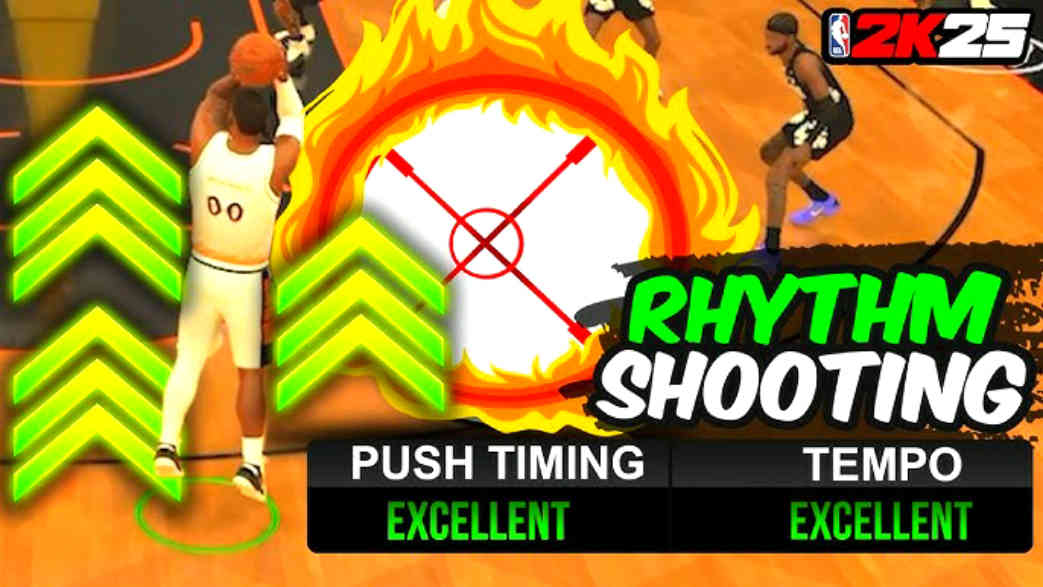
A significant addition this year is Rhythm Shooting. It involves pressing the Right Stick down, then flicking it up in sync with the player’s shooting motion.
If you use Rhythm Shooting, your shot meter will look different. It focuses more on the tempo of the stick movement than just holding a button.
If you find this distracting, you can go to Controller Settings and toggle Shot Timing back to Real Player % (for casual play) or stick to the traditional Button timing.
Recommended Settings for Different Skill Levels
| Player Type | Shot Meter | Visual Cue | Meter Size |
|---|---|---|---|
| Beginner | On | Push | Large |
| Intermediate | On | Set Point | Medium |
| Competitive | Off | Push | N/A |
Why the “Off” Setting is King
If you watch any professional NBA 2K League player or high-rep YouTuber, you’ll notice their Meter is gone. It isn’t just to look cool.
When the Meter is off, the game rewards you for knowing the animation. Because online play always has a slight bit of latency (delay), the visual bar on the screen can sometimes lie to you.
Common Troubleshooting
My Shot Meter disappeared!
If your Meter is gone and you didn’t turn it off, check if you accidentally enabled Pro Stick Only or Shot Button Only in the Controller Settings.
Make sure it is set to All if you want it to appear for every type of shot we prefer, as they help you have a better experience.
The Meter is lagging in the Park/Rec
It is usually due to server latency. The best way to fix a lagging meter is to actually turn it off and rely on the Visual Cue (Push).
It forces your brain to focus on the player rather than the delayed UI element, which can make the game feel tedious and tiring.
Changing your shot meter in NBA 2K25 is simple. Finding the right combination of size, color, and visual cue is what separates the casuals from the legends.
Start by finding a color that pops, adjust your cue to push, and once you feel comfortable, adjust it again. Try turning the Meter off entirely to take advantage of that massive green window boost.
Spend some time in the Gatorade Rental Court or MyCOURT to test these changes before heading into a high-stakes Rec game.
Every jumpshot animation has a different hitch. Find yours, match your Meter to it, and stop missing wide-open looks.
Overall, this guide on how to change the shot meter in NBA 2K25 has been made easy for both new users and those who are having trouble understanding the new version.